Showing posts with label newbies guide. Show all posts

How To Index Blogger Blog On Google

Whenever any one make blog or website, The first thing come into mind is how to get visitors on blog and how to show its contents in search results.You can get visitors on your blog by indexing your blog on search engines.Your blog will index by S.E when you submit your blog on them.But typically, you have to wait some time for the Googlebot to crawl your blog and add it to the Google index.


index-blogger-blog-on-google
           
So the question comes in our mind how do it quickly, here are the basics of how blog or website content is crawled and indexed and also some great ways to get the Googlebot to your website or blog to index your content sooner rather than later. I think first of all you should learn about term index, crawl and Googlebot. Just below here you can read about them.

What is Googlebot, Crawling, and Indexing?

Difference between these G.B crawling and indexing are given below.

  • The Googlebot is a software that Google sends to our blogs and websites to collect information about documents or contents on the web to add to Google’s searchable index.
  • The process of getting new information about any blog or website and send them back to Google, done by the googlebot this process is known as crawling. The Googlebot finds what to crawl using links.
  • When the G.b collect new info from web by their crawling activity then they show new contents or posts of blog in their search engine this process of showing posts in S.Results is indexing.
So how does the Search engine find new posts on your blog and index them in search results? It is done when we submit our blog and blog site map on S.E.

How To Submit Blog On Google Search Engine

                                     To add blog on Google search engine just follow the below steps.


  • First of all go to Google webmaster tool
  • Sing in here with your gmail account if you have no gmail account,make new one.


    google-webmaster-tool
    Sing in To Webmaster

  • Now click on Add property to add your blog or website.

                                                  
    submit-blog-on-google
    Click on ADD property
  • When you click on it new popup box will open just past url of your website or blog here and then click on continue.
    add-blog -url-in-google
    Add blog url
We have added our blog on Google Search engine.But you need to verify it so read the below paragraph to verify your property.

Verify Your Blog On Google

                                  This is most important step to index your blog on google search engine to do this step you need to follow the lines given below.


  • Go to Your blog dashboard by clicking on the url of your blog as shown in image.                                                       
    verify-blog-on-google
    Click on url of blog or website
  • Dashboard of your blog on webmaster will open, Just click on the gear button which is on the top right side of screen.

                                                                      
    submit-blog-on-google
    go to gear then on verification detail
  • Drop down menu will open go to verification detail and then click on Verify using a different method.
  • If your blog is on Blogger/Blogspot platform select HTML Tags .

                                                                      
    copy-meta-tags
    Copy meta tags
  • They will provide a meta tags just copy them and paste them just below to <head> tag of your blog template.And then save template.
                                                        
    paste tags below <head>
  • Now again go to webmaster and click on verify to complete verification process.

                                                                         
    submit-your-blog-to-index

  • Page will reload and you will see congratulation message.

                                                                    
    index-complete
Google will start indexing your blog's posts now but you need to submit your blog sitemap on google so the googlbot can crawl and index your blog's contents easily.

How To Submit Blogger Blog Site Map On Google

There are many platforms to start blogging and i can't wright about every platform to submit blog site map if you are using blogger/Blogspot hosting then well and good and keep following me to learn how to submit blog site map on G.Search Engine.

Blogger make sitemap for their blog's automatically so you don't need to make it you just have to submit it.

Steps To Submit Site Map

  • Go to Google webmaster.
  • Now Go to your blog dashboard on webmaster by clicking on it.
  • Click on Crawl and then on Sitemap.

    add-site-map
  • Then click on ADD/Test Sitemap.
                                                                           
    add/test-site-map
New box will open just type sitemap.xml in box then on Submit site map.
                                                                

Congratulation we Done !!!!.

Now google will start indexing your blog in search results and you will get valuable traffic from Google search engine.

How to Get Your New Blog Index Quickly

                                      When you done the all above steps, It will take some days to index blog by google in some case it may take several weak. So here below are some tricks and easy ways to index your blog on google search engine quickly.


  • Setup Your RSS with Feedburner – Feedburner is RSS management tool own by Google.Login and submit your blog’s URL or RSS feed URL into the “Burn a feed” field. In addition to this your sitemap will also notify Google about new posts on your blog so they will also index automatically.
  • Submit to Blog Directories – TopRank has a huge list of sites you can submit your RSS feed and blog too. This will help you to make back links. If you can't start with all them, at least start with Technorati because it is also top directorie. Once you have a good amount of content, also try Alltop.
  • Install Google Analytics –You should install G.Analytics on your blog to track your visitors location it will also help Google to index your Blog.
  • Create Social Profiles – Crawlers get to your site via links. One way to get some quick links is by creating social networking profiles for your new website or adding a link to your new website to pre-existing profiles.
  • Guest Posts – Again, to help in the back link building process, get some more links to your new website by submitting guest posts to blogs in your niche. Always write quality contents not Spamy spamy posts will damage your SEO.
Once your blog is index by google you will enjoy traffic on your blog from google search engine.
If you have any problem or want to suggest any thing about how to index blogger blog on google please comment below.

How To Increase Blog Traffic

get-traffic-on-blog
To make a free blog is very easy, but to get high traffic on it and make it successful is very hard, but Ithink it is not hard if we learn how to increase blog traffic. So today I am going to tell you some tested tricks and tactics to get traffic to the blog. I also apply all these things on my blog to increase my blog traffic.

Before starting i want to tell you that if you made your blog to make money online then you should try all these tricks to get traffic because more visitors = more money. Lets Start!


#1- Make Your Content SEO Friendly

                             According to my experience seo is a key of success for bloggers.Try to get organic traffic you can done it by just improving your blog seo and by making your blog contents search engine friendly.I am not going to tell you everything about search engine optimizing If you want to learn about SEO visit our seo leable. But here is a super-quick guide on what you will need to do in order to make contents SEO friendly.To increase blog traffic follow these seo tricks.
  • Keyword Research: If you want to get organic traffic through search engiens, it’s best to do keyword research before you start writing your content. This way, you can focus on keywords for which a certain amount of search volume already exists – in other words, write toward topics that people are already searching for information about.
  • Keyword Optimization:  You should know that where and how to use keywords in your content for maximum searchability. 
  • Content Organization: The content on your blog should be organized in a batter way. This is not only good for SEO, it also helps visitors on your site find other related content easily. (The longer they stay on your site, the better.)
  • Content Promotion: Promote your new content by sharing it on social networks and building links to your posts (both internally and from external sites).

#2- Join Communities Where Your Audience Already Gathers 

Communities play important role in traffic of blog their are many popular communities on internet with much users.Basically, blogging communities are very good for bloggers to increase traffic on their blog. In communities we can meet and interact with other bloggers and get a good traffic to our blogs. We can share our blog posts with them.
There are hundreds of blogging communities.

Advantages 

  •  Meet and build relationship with other bloggers: You can meet with new bloggers and make relation with them.This is very helpful for bloggers.
  • Promote your post: You can share your blogs post to the community and increase traffic.
  • Can share each other’s stuffs: We can help each other to explore our blogs by sharing
  • Bulid back links: Most of blogging communities have good page rank and domain authority. You get some high quality back links from them.
  • Higher ranks: When you submit your posts to blogging communities it helps you to get good ranks
  • Increase traffic to your blog: if you get some up-votes to your submitted post, you can get good amount of traffic from these blogging communities, the key is to stay active on these communities.
  • Get new trends: People share new things every day so you can also learn some new things from them.

#3- Write Guest Posts

Writing guest posts is also a good way to increase traffic on blog. Guest posts means writing posts on any other blog. I'm also writing guest posts to get traffic on my blog. There are a large number of blogs who accept guest posts You can find these blogs at myblogguest.com.

When we write a post on any other blog which already have a massive amount of traffic then when their visitors read your post, maybe they visit your blog if they like your guest posts. By writing contents on other blogs we can get good backlinks to our blogs.

#4- Stay Update On Social Media

One of the best way to increase traffic on blog is social media. We can get a large traffic from social media.I am also enjoying good traffic from social media by just doing following points.
I will also suggest you to do these things to get traffic from social media.

  1. Get on Twitter. Share your posts with your followers . Add your twitter follow button on your blog to get more followers. 
  2. Make a Facebook page for your blog. This is very good way to build audience on facebook.You should make a facebook page for your blog if already have then very good.Share your blog posts on your blogs page.Add facebook like box on your blog to get likes on your page LIKE OUR PAGE
  3. Regularly share your content on Facebook. Share your contents regular on Facebook.Join Facebook groups and share in them.Add facebook share button in your posts so your readers will share your posts.
  4. Ask others to promote your blog via social bookmarking sites, such as DIGG, Stumbleupon, Reddit, and others. You may occasionally do this yourself, but be careful of doing it repeatedly, as some sites penalize sites with multiple submissions from the same user.
  5. Add social sharing tools on your website. Best tool is Flare, which allows you to combine sharing options via Twitter, Facebook, email, and social bookmarking sites into one tool.
  6. Add social-powered commenting tool in your blog Best tools are Disqus or IntenseDebate for comments.

#5- Make Internal links

You can notice that I have made some internal links in this post and try to connect my visitors on this post with other posts. You should also make internal links in your posts so when a visitor will read your post, then maybe they visit another post which link you have included in your post. By this way you can bind your posts with one another and this is a good way to increase your blog traffic and to get more visitors and page views.

These all are very important to get traffic on blog i am also following these above tricks to increase traffic on my blog.
Have any question or want to know some thing more just ask me in comment box.
Happy Blogging!!!


Introduction To Blogger Dashboard

blogger dashboard


What is Blogger ?

Blogger is a blog-publishing service that allows multi-user blogs with time-stamped entries. It was developed by Pyra Labs, which was bought by Google in 2003. Generally, the blogs are hosted by Google at a subdomain of blogspot.com. Blogs can also be hosted in the registered custom domain of the blogger (like www.example.com). So blogspot.com domain publishings will be redirected to the custom domain. A user can have up to 100 blogs per account.
Up until May 1, 2010, Blogger allowed users to publish blogs on other hosts, via FTP. All such blogs had (or still have) to be moved to Google's own servers, with domains other than blogspot.com allowed via custom URLs.Unlike WordPress, Blogger allows its users to use their own domain free of charge, while Wordpress charges around $11 to use a custom domain Blogger cannot be installed on a web server. One has to use DNS facilities to redirect a custom URL to a blogspot domain.

IF you are new user on blogger and you don't know anything about blogger then this post will very helpful for you to know something about blogger dashboard.

What is Blogger Dashboard ? Introduction 

Your Dashboard, as always, is your starting point. This is where all your blogs are listed, and you can click on the icons next to them to perform various actions on each blog, such as:
  • Writing a new post: Just click on the orange Pencil icon on your Dashboard to access the Post Editor.
  • Viewing your posts: The gray Post List icon will take you to a list of your published and drafted posts for a specific blog.
  • Catching up on your favorite blogs: Below the list of your own blogs, you’ll see a list of the blogs you follow with an excerpt from their latest posts.
  • Everything else: Check out the drop-down menu next to the Post List icon for a quick link to:
    • Overview
    • Posts
    • Pages
    • Comments
    • Stats
    • Earnings
    • Layout
    • Template
    • Settings
                                                             We will discuss all components on blogger dashboard one by one. So lets start.

When you log in to your blogger blog then you will see page look like this image.
                 
blogger dashboard
blogger dashboard


First of all we are going to discuss about overview.

Overview

                  On the Overview tab, you can see your blog’s activity, news and tips from the Blogger team, and recent Blogs of Note.
blogger overview


Posts

In this tab You can write a post on your blog and can share anything with the world. When you click on this option you can see all your previous posts on your blog if you have posted any and you can edit them.You can see an icon of a pencil on the right top of blogger website
blogger dashboard
Just click on that button and then post editor will open and you can write your post on your blog.

Pages

add new page in bloggerBlogger pages let you to publish/post static/fixed information on stand-alone pages linked from your blog. Add a new page in blogger In this tab you can add pages in your blog like page of about me, contact us and privacy, etc. you can add new pages in your blog by just clicking on this tab and then on NEW PAGE button.


Comments

           When any one comment on your blog you can hide or delete those comments from your blog in this option this is very helpful for spam detecting.
comments tab in blogger


Google+

Google+ tab helps you to share your posts on your google plus profile by just clicking on Automatically share after posting in this tab You can connect or disconnect your google profile with your blog from here.
blogger dashboard


Stats

Stats is an important piece of the blogging puzzle, as it allows you to track your blog's traffic and find out exactly what your audience is looking for. As such, integrated, real-time stats has been one of the most frequently requested features from our users.Stats allow you to 
blogger stats
  • Real-time tracking. Each time your blog is viewed, you can see the change on your stats almost immediately
  • Insights about your audience. Top search keywords, countries, browsers, and more
  • Great user interface. Beautiful, easy-to-read graphs and charts

Things you must know-Blogger stats

  • It tracks your own page view.
    • You need to analyze the visitor traffic ,not your page view as traffic.But Blogger stats shows your visit as page views.
  • It shows the visit of Crawler as page view.
    • Crawler visit to blog is also marked as page views.So if you see page view by countries USA ,Canada-those all are not real human visitors,are crawler visit to your blog. 
    • Another thing you will notice,in browser category -when you see jakarta commons http client,it is the crawler.
  • Don't track my own page view doesn't work.
    • Blogger has added a option to disable own page view indexing,but it seems it does not working.Maybe they will notice and fix this.

Earnings

The Earnings tab in Blogger makes it easy to enable AdSense ads on your blog. Once your account has been approved, you can go to the earnings tab to go to your AdSense dashboard.
blogger earning tb
AdSense Report
Once you start generating AdSense impressions, you'll begin earning money when people click on ads that appear on your blog. To see earnings information, go to your Earnings tab and click on the "View Dashboard" link.

Compaigns

The Campaigns tab is where you go to set up and manage your ads. Within this tab, you can change the settings of your ad groups, ads, and keywords. You can also see and customize your account statistics, download your data, and more.

Layout

Blogger's Layout feature is an easy-to-use template editing feature that allows you to edit and customize your Blogger template without any knowledge of HTML or CSS. You can easily edit and customize the colors, fonts, header and sidebar of your blog with a few clicks of the mouse. To customize your blog's layout, go to the Layout tab.
Layout_tab

Template

This tab in blogger dashboard allow you to change or customize your old blogger template.You can also edit your template codes here.
template-tab

Settings

In this you can set your blogger setting. Blogger Setting play important role to make our blog perfect and successful. You should set your blogger settings perfectly and also careful if you set your blogger settings wrong then it will kill your blog.Blogger setting also plays good role in SEO you want to improve your SEO then you should set your blogger setting in a good way. 


How To Set Up Blogger Setting Perfectly

Blogger Setting play important role to make our blog perfect and successful. You should set your blogger settings perfectly and also careful if you set your blogger settings wrong then it will kill your blog.Blogger setting also plays good role in SEO you want to improve your SEO then you should set your blogger setting in a good way. If you are new blogger and don't know how to set up blogger setting perfectly, then don't take tension, I will teach you these all things. We will not only learn how to set up blogger setting we will also discuss about their function and how they help us and how we should set up then So lets start.
                                set up blogger setting
First of all login to your blogger dashboard and click on SETTING option on left side.
                                
set up blogger setting

Next some more options will appear and from them select basic option.
                                                                
set up blogger setting
These basic settings are easy you can understand and set these your own.
Go to another option POSTS & COMMENTS and set the setting of the post and comment as shown in below image.

                                        
set up blogger setting

Next setting option is Language and Formatting and set these options according to your language,time zone and place.


Fourth and very important setting option is SEARCH PREFERENCES. The whole game of SEO and your blog traffic depend upon this you should set these blogger settings perfectly. Here are two important settings Meta tags & Crawlers and indexing.

Meta tags

Meta tags have been around since… Since I can remember. They have been a big part in search engine history. They were valued as a factor in rankings before – until people started abusing their use in getting on top of the SERPs. After that, Google opted meta tags out of the ranking factors. But that doesn’t mean they’re not important anymore. Meta tags still play quite a big role in your site’s SEO.


In the Meta Tag option there is box for blog description you must add your blog description because If you don't specify a search description for your blog, search engines will establish one for you based on your blog’s content.

Crawlers and indexing

In crawlers and indexing there are two features if you set these settings wrong, then Incorrect use of these features can result in your blog being ignored by search engines. so carefully set these as I say.
                       
crawlers and indexing


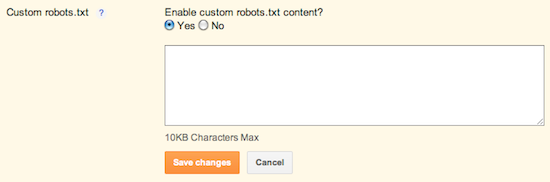
 Custom Robots .txt

Warning! Use with caution. Incorrect use of this feature can result in your blog being ignored by search engines.
Custom robots.txt is a way for you to instruct the search engine that you don’t want it to crawl certain pages of your blog (“crawl” means that crawlers, like Googlebot, go through your content, and index it so that other people can find it when they search for it). For example, let’s say there are parts of your blog that have information you would rather not promote, either for personal reasons or because it doesn’t represent the general theme of your blog -- this is where you can clarify these restrictions.
However, keep in mind that other sites may have linked to the pages that you’ve decided to restrict. Further, Google may index your page if we discover it by following a link from someone else's site. To display it in search results, Google will need to display a title of some kind and because we won't have access to any of your page content, we will rely on off-page content such as anchor text from other sites. (To truly block a URL from being indexed, you can use meta tags.)
Custom robot.txt for Blogger
Just add these codes in this box.
User-agent: Mediapartners-Google
Disallow:
User-agent: *
Disallow: /search
Allow: /
Sitemap: http://www.bloggerskilled.blogspot.com/sitemap.xml
Just change my blog url with your blog url.

Custom robots header tags

Custom robots header tags allow you to tell web crawlers not to index certain sections of your site. It’s similar to customrobots.txt, but not as granular. For example, if you check the box for "nofollow" under the "Homepage" section, it means that you don’t want web crawlers to consider any links on your homepage leading to any other page.
To enable these tags, go to Settings | Search Preferences, click Edit next to "Custom robots header tags," and select Yes.
The three sections you’ll see below correspond to:
  • Your blog’s home page
  • Your archive and search pages
  • Your posts and pages
Check the boxes to set the flags according to your preferences, then view the sections of your blog that you customized (home page, archive and search pages, pages and posts). You should see an X-Robots-Tag header tag in the HTTP response with the selected flags.Set these as shown in image below.
I think you have learned all these things which I tell above if you have any problem or want to ask any question our comment box is always open for you let me know in the comments what you learn from this post.